
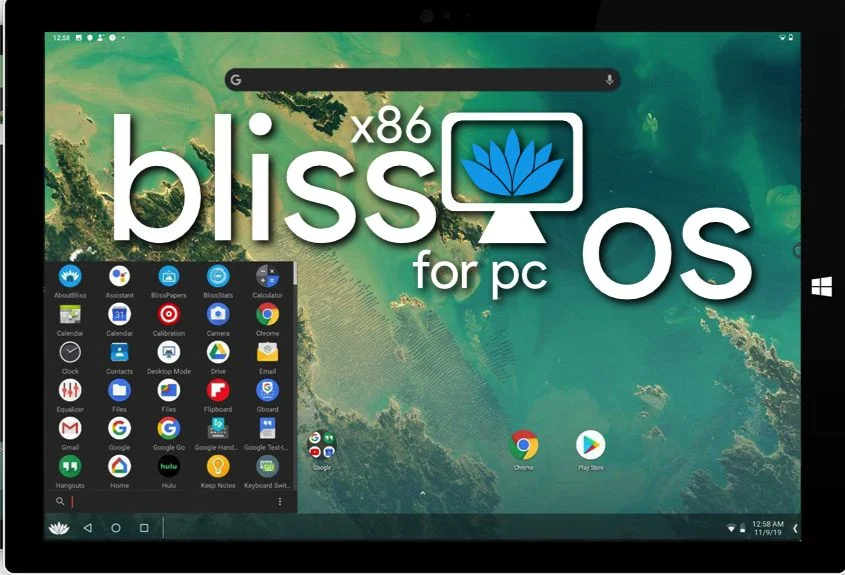
What Is Bliss OS?
Bliss OS is an open-source Android-based operating system designed to run smoothly on desktop and laptop computers. It brings the Android experience to PCs, combining mobile performance with desktop-level flexibility.
blissos download on Android-x86, Bliss OS adds customization, optimization, and design improvements that make it a favorite among developers, gamers, and productivity users who want the Android ecosystem outside mobile devices.
Why Choose Bliss OS?
Bliss OS is popular because it’s fast, flexible, and open-source. Here are a few key reasons to try it:
-
Android on desktop – run your favorite Android apps and games on a larger screen.
-
Open-source and free – no license costs, no hidden fees.
-
Customizable – tweak layouts, themes, and settings to your liking.
-
Stable and performance-optimized – supports multiple CPUs and GPUs, with options for both old and new hardware.
-
Privacy-focused – no unnecessary data collection or forced Google integration.
System Requirements
Before you download Bliss OS, make sure your system meets these minimum requirements:
-
Processor: Intel or AMD, 64-bit (x86_64)
-
RAM: At least 4 GB (8 GB recommended for smooth performance)
-
Storage: 8 GB of free space or more
-
Graphics: Integrated or dedicated GPU (Intel HD, AMD, NVIDIA)
-
Boot Mode: Supports both BIOS and UEFI
Where to Download Bliss OS (Official Sources Only)
Always download Bliss OS from trusted and official sources to avoid malware or corrupted files.
How to Install Bliss OS on Your PC
Here’s a step-by-step guide to help you install Bliss OS:
Step 1: Download the ISO
Go to the and download the latest stable ISO version (for example, Bliss OS 16 or 17).
Step 2: Verify the File
Compare the ISO’s SHA256 checksum with the one listed on the download page. This ensures your file hasn’t been tampered with.
Step 3: Create a Bootable USB
Use a tool like Rufus or BalenaEtcher to create a bootable USB drive from the ISO file.
-
Select your USB drive
-
Choose the Bliss OS ISO
-
Click Start
Step 4: Boot from USB
Restart your PC and enter the boot menu (usually by pressing F12, F9, or Esc during startup). Choose your USB drive to boot Bliss OS.
Step 5: Try or Install
Bliss OS gives you two options:
-
Live Mode – run Bliss OS without installing.
-
Install Mode – install it permanently on your hard drive or SSD.
Follow the on-screen instructions to complete installation.
Post-Installation Tips
-
Enable updates: Check for the latest patches or new releases.
-
Install apps: Use the built-in Bliss app store or install Google Play if included in your version.
-
Dual boot: You can dual-boot Bliss OS with Windows or Linux for more flexibility.
Bliss OS Versions
| Version | Android Base | Status | Notes |
|---|---|---|---|
| Bliss OS 15 | Android 12L | Stable | Great for general use |
| Bliss OS 16 | Android 13 | Beta | Newer features, improved UI |
| Bliss OS 17 | Android 14 | Development | Experimental builds |
Common Issues & Fixes
-
Wi-Fi not working: Try a different kernel or check compatibility settings.
-
No Play Store: Use the “GApps” version of Bliss OS.
-
Slow performance: Use SSD storage and increase RAM allocation if running in VirtualBox.
Bliss OS vs. Android-x86
| Feature | Bliss OS | Android-x86 |
|---|---|---|
| User Interface | Modern desktop-style UI | Stock Android |
| Performance | Optimized for PCs | Basic Android port |
| Updates | Regular, community-driven | Slower release cycle |
| Customization | High | Limited |
Conclusion
Bliss OS offers a powerful way to bring Android to your PC. It’s secure, customizable, and completely open-source — ideal for developers, gamers, and anyone who wants Android flexibility with desktop performance.
Always download from official sources like the Bliss OS website or SourceForge, verify the ISO, and follow installation best practices for a smooth experience.


